Please use this check box to allow the program to rotate layers while rendering mosaic.
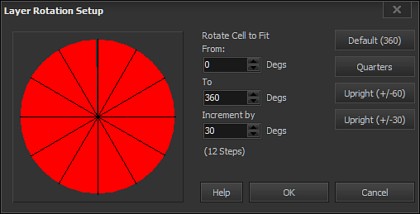
The speed button beside the check box will brings up Layer Rotation Setup:
You may set initial and final rotation angles and rotation increment in the appropriate text boxes.
Speed buttons on the right help you to set a few rotation presets quick.
Below are few examples of rotation effect:
|
Layers with no rotation:
|
|
Layers with default rotation 0 / 360 / 30
|
|
|
|
|
|
|
|
|
|
Layers with rotation -30 / 30 / 10
|
|
|
|
|
|
|
"0 / 360 / 30" setting gives better results. Wit this setting the program reckons and compare all
layer positions with rotation angle from 0 to 360 degrees. (Full circle). Overall mosaic looks is
best but some of layers are placed upside down. If this is not appropriate, you may use rotation
not full circle rotation. The third picture shows layer rotated from -30 to 30 degrees with 10
degrees increment. It looks better than not rotated layer and all layers are in proper positions.
They are just tilted and there are no upside down pictures.
Note:
Less rotation increment means more rotation variants. Too many rotation variants may
considerably increase time that is needed for mosaic rendering. For example if you set rotation
increment to 1 degrees with full circle rotation program will have to calculate 360 times more layer
positions. It may takes 360 times more time.