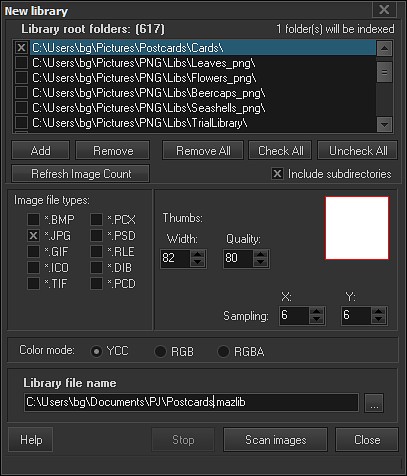
Library root folder(s) - This is a list of folders where your tiles images are. Program process folders
that are checked. If you uncheck a folder, it will not be indexed. This is handy when you create a set of
similar libraries made from some common and some specifics folders.
To populate the Library root folder list you may simply drag a folder from Windows Explorer and drop it
into the list. Otherwise you may use Add button.
Use these buttons to manage the list content:
Add - This opens Select folder dialogue to select a folder to add to the list.
Remove - This will remove a currently selected folder.
Remove All - This will clears the list.
Check All - This will place check boxes for all items at the list.
Uncheck All - This will clears all check boxes.
Include subdirectories - Check this option if your files are in subfolders.
Library file name - Select a name for a new library.
Image file types - Choose one or more of the image file types you want to use.
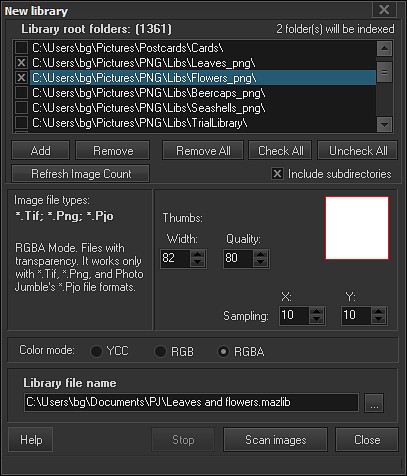
Color mode - (default YCC) Choose library Color mode. There are three available modes: YCC, RGB.
and RGBA. Recommended mode for rectangular layers is YCC. For non rectangular photo objects
please use RGBA mode.
Below is a screen shot of the new library screen in RGBA mode:
 :
:
Sampling X Y
Scan images - Press Scan images button to create a new library.
When process would be completed new library would be open and ready to use for mosaic making.
Stop - Press this button to stop scanning process anytime.
Library file would be created and filled with as many tiles as was indexed on the moment of canceling.
Close - Press this button to Close this screen without library creation.
|
Advanced settings (Active only in fully registered version)
Sampling - When picture tiles are selected, the program must choose only The Best Tile. It could
analyze a region as a matrix of Sampling size. This setting depends on the image tile count. General
rule: more tiles in library - more Sampling size. Usually it is enough to use 6x6 sampling size for an
average size library about 1,000 - 5,000 tile in YCC or RGB mode.
If you use non-rectangular transparent tiles it is good idea to increase sampling values.
Usually it is OK to set them to about 10 or so.
Thumbs Width and Thumbs Quality
Thumbs i.e. miniature copies of image tiles are stored in the library. They are used for preview of
mosaic in the main screen and for creation of output mosaic with not very high resolution. Higher
values for Thumbs Width and Thumbs Quality will give you a clearer preview, but may decrease
creation speed and increase resource consumption.
|