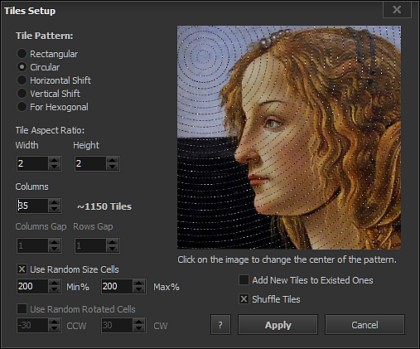
To bring up this window please select from Menu Image-Add Layers or use Add Layers button on the main screen.
Tile Pattern:
Rectangular - Add tiles in a rectangular order.
Circular - Add tiles placed in circular pattern. To move a center of the pattern please click and drag on
the image with your mouse.
Horizontal Shift - Every odd layer line will be shifted to the half of single layer width.
Vertical Shift - Every odd layer column will be shifted to the half of single layer height.
For Hexogonal - Every odd layer line will be shifted to the half of single layer width and
height of the layer lines will be compressed to 0.75 of single layer height. This is optimal layer
distribution for layers with hexogonal or round objects inside.
Tile Aspect Ratio - Set tile width/height aspect ratio here.
Columns - If you have selected to use Rectangular Tile Pattern this will be a number of columns in
mosaic. Number of rows will be calculated automatically according with selected Tile Aspect Ratio.
If you have selected Circular Tile Pattern this value will be used to calculate the size of the single tile
(according with selected Tile Aspect Ratio) and program will place tiles of that size in the Circular order.
Columns Gap/Rows Gap - This option is active only in Rectangular Tile Pattern mode. It will make a
gaps between columns and rows.
Use Random Size Cells - If this option is active program will use tiles with sizes randomly enlarged or
reduced.
Use Random Rotated Cells - If this option is active program will use random rotated tiles. This option is
active in Rectangular Tile Pattern mode only.
Note: Negative angles counts as a clockwise angles; positive angles are a contra clockwise angles.
A layer with zero angle is vertical placed layer.
Add New tiles to Existed Ones - If this option is on a new layers will be added to the already existed
layers.
Shuffle Tiles - If this option is on new tiles will be shuffled. You my shuffle tiles manually selecting from
menu "Edit"->"Shuffle Tiles"
Cancel - This will close dialogue with no tile adding.
? - Opens this help page.
Apply - Press this button to add layers.