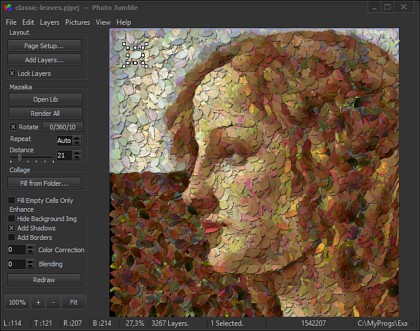
The following is Photo Jumble's main window:
To access all features of the program please use Main
menu.
You may zoom in and out the main image with mouse wheel.
You may pan main image with mouse dragging while holding space bar pressed.
The following Buttons and Controls are intended to help you access the most common features of the
program fast:
This will "Locks" layers position. You still be able to select layers but can not move or resize them.
This will bring up an Open Library Dialogue to open existing Photo Jumble image library. You may use
libraries created with Photo Jumble as well as libraries created with the Mazaika.
This will renders mosaic by replacing images in the layers with most similar images from current opened
library. If no library is open, program will asks you to open library first.
Use this value to set a number of occurrence of any given tile in the final mosaic. If this value is Auto (or
0) then program doesn't control the overall occurrence of tiles. If this value, for example, is 1 then any
tile in the mosaic could be used only once. Please be careful with this control, if you do not have very
much tiles in the library, it is recommended to set this value to Auto.
Use this value to set a distance between the same tiles in the mosaic. If slider pin is in the middle of the
slider bar then the distance between repeated tiles will be same as the half length of mosaic. If this
value is 0 (pin is on the left) then program could repeat the same tile one by one. While you are
adjusting the Distance control you will see a special white rectangle in the middle of the mosaic that will
show you the size of the "unrepeated" area corresponded to the current Distance value.
This will ask you for a folder with pictures and will replace layers with pictures from this folder. Images
will be in the same order as they are in the selected folder.
If this option is checked, new images will be inserted into empty layers only. I.e. in the layers that did not
contain images yet. This control affects both "Mazaika" and "Collage" modes.
Enhance mosaic options:
This will mask background picture. The color of the mask is the same as has been settled in the Page
Setup dialogue.
If this option is checked then program will add a shadow to the every layer picture. The properties of the
shadows are the same as has been settled in the Page Setup dialogue.
The Shadow drawing engine
uses different modes for rectangular and non rectangular layers. Please select the needed mode in the Page Setup dialogue. (You will need to redraw mosaic manually to
see changes). Please see Layers
Options for more details.
If this option is checked then program will draws a border around every layer picture. The properties of
the borders are the same as has been settled in the Page Setup dialogue.(You need to redraw mosaic
manually to see changes). Please see Layers Options
for more details. Border option works only for
rectangular layers. Non rectangular images can not be drawn with borders.
If this value is not zero program will use the color correction for every layer picture. (You need to
redraw mosaic manually to see changes).
If this value is not zero program will blends every layer picture with corresponded background area
below layer. (You need to redraw mosaic manually to see changes).
To see mosaic enhanced with the new settings you had to press Redraw button or select Redraw from
the View menu. This will redraw all layers with regard
of current color correction, blending, border and
shadow settings.
Use this button set to control mosaic view.
Use "100%" to view the mosaic in an actual size.
"+" - will Zoom In image.
"-" - will Zoom Out image.
"Fit" - will fit mosaic image into main screen.